

4. Firmware update
Firmware update
Introduction
The document describes the steps to update the BMS Logic 2R firmware.
Required hardware and software:
- PC or laptop with Windows 10 or newer;
- BMS USB-RS485 – a device to power and communicate with the BMS Logic 2R;
- ElectricDeviceMonitor – a software to monitor and configure devices by Movicom Electric;
- Firmware (*.srec) – a new firmware for the BMS Logic 2R.
Updating process
Follow the steps below:
1. Connect the BMS Logic 2R to the BMS USB-RS485 with harnesses:
- X1 header of the BMS Logic device – to the side (“Cells”) header of the BMS USB-RS485;
- X3 header of the BMS Logic device – to the upper header of the BMS USB-RS485.
2. Move switches of the BMS USB-RS485 to the following positions:
- 120 Ohm – “I”;
- Cells – “0”;
- +5V – “0”.
3. Move all switches of the BMS Logic 2R to OFF position to boot the device to bootloader after startup.
4. Connect the BMS USB-RS485 to a PC.
5. Move the switches “Cells” and “+5V” of the BMS USB-RS485 to “I”. Check that the led “DS13” of the BMS Logic 2R is blinking once a second.
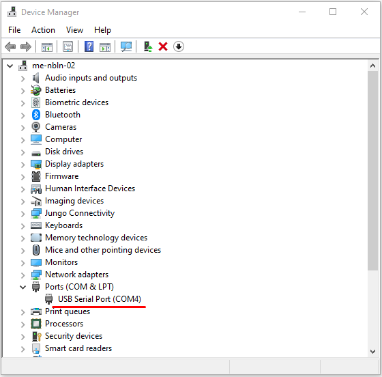
6. Open the Device Manager* and determine a name of an appeared serial port (Click the right mouse button on the Start menu and select the “Device Manager” item):
7. Install and launch the ElectricDeviceMonitor.
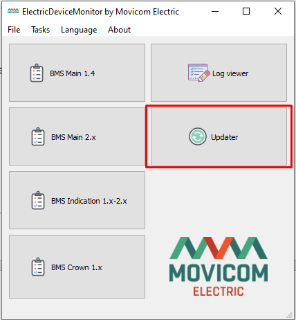
8. Click the “Updater” button:
9. Select the transport “Serial port transport (1.0.0)” and click the “Settings” button to configure the serial port: select a port name that corresponds to the BMS USB-RS485 and 115200 kbps baud rate.
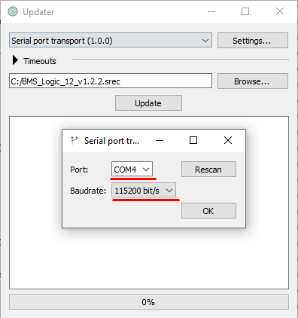
10. Click the “Browse…” button and open the new firmware file.
11. Click the “Update” button. The updating process will start.
12. Wait the updating process is finished. Move the switches “+5V” and “Cells” to the “0” position and disconnect the BMS Logic device from the BMS USB-RS485.
13. Set the BMS Logic 2R device address as it was before the update.