

3.9 Service
Configuration
Service
Device
To restart the board and update firmware, select the menu "Service → Device":
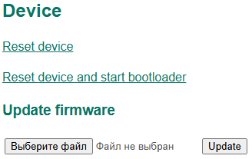
In this section:
- Reset device;
- Reset device and start bootloader;
- Update firmware – a form for updating the board firmware (this function must be enabled in the user settings – see section User settings).
When you select the “Reset device and start bootloader” option, the bootloader is activated, which is used to update the firmware of the board via Updater in ElectricDeviceMonitor.
Settings
The board provides options for resetting, exporting, importing, and locking BMS settings. To perform these actions, select the menu "Service → Settings":
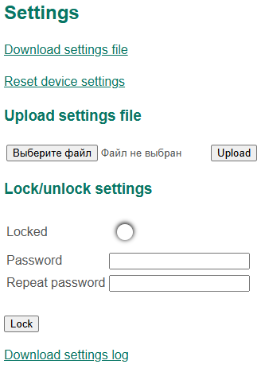
In this section:
- Download settings file – a link to save (export) a file with board settings to a PC;
- Reset device settings – a link to reset board settings to default values;
- Upload settings file – a form for loading (importing) the board settings from a settings file;
- Lock/unlock settings – a form to lock or unlock the board settings:
- Locked – a state of settings;
- Password – a field with a password to protect settings from changing (optional);
- Repeat password – a field to repeat the password (optional).
To lock the BMS settings, click on the “Lock” button. Locked settings cannot be changed. In addition to the prohibition on changing settings, the system calculates a checksum across the entire BMS configuration. When starting the BMS checks the checksum settings. If the checksum does not match the required value, then the “Settings error” is generated. At the same time, a critical error flag is generated and all relays open.
To unlock the BMS settings, click on the Unlock button.
Locking settings can be password protected.
To reset the settings, select “Reset device settings”. This operation will not be performed when the BMS settings are locked.
To export settings, select “Download settings file”. In this case, a file with the name "settings.txt" will be downloaded from the board, in which all the parameters of the BMS Main 2.x board are written in text form.
To import the settings, click on the "Select a file" button, specify the previously saved "settings.txt" file and click on the "Upload" button. This operation will not be performed when the BMS settings are locked.
Clock
Real-time clock is used for logging timestamps.
To set the current time and the time zone, select the menu "Service → Clock":
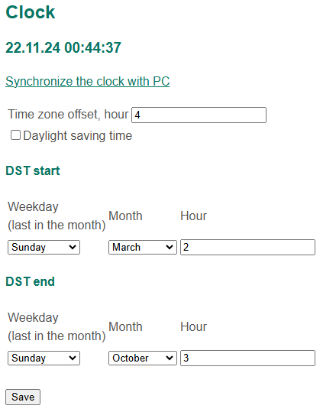
In this section:
- Synchronize the clock with PC – a link to set the board clock;
- Timezone offset, hours;
- Daylight saving time – a flag enable the DST rule;
- DST start – daylight saving time policy (start),
- DST end – daylight saving time policy (end):
- Weekday (last in the month);
- Month;
- Hour.
The line in DST start "Sunday, March, 2" means that the clock is switched to summer time at 02:00 on the last Sunday in March.
SD-card logging
The board supports the preservation of the battery and BMS state in the form of log files to the SD card.
To set up the SD-card logging, select the "Service → SD-card logging" menu:
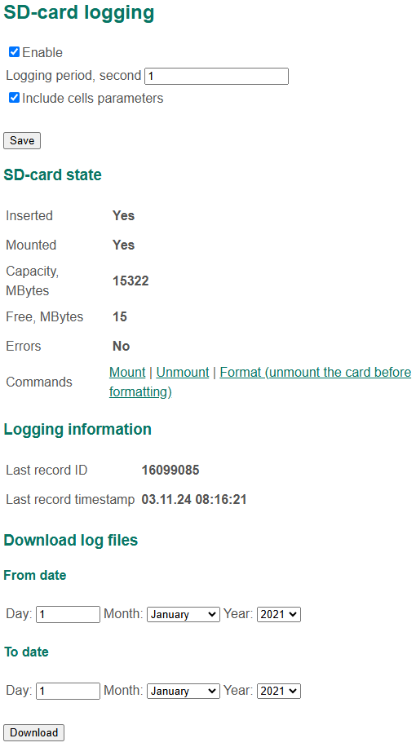 TBA
TBA
File browser
It is possible to download a log file from the SD-card. To do this, select the menu "Service → File browser":
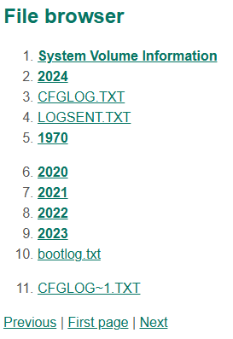
Use buttons in bottom row to navigate in the File browser. In numerated list folders indicated with bold font, files – with regular font. To download the file, click the corresponding link.
User
User settings include the battery number, the address of the battery, the password for accessing the WEB interface, and the board options.
To go to the user settings, select the menu "Service → User":
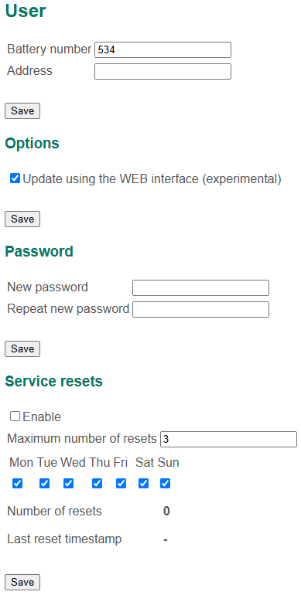
In this section:
- Battery number – a number of battery (displayed in the log file);
- Address – a battery location address;
- Update using the WEB interface (experimental) – a flag to enable experimental function of updating the firmware of the board via the WEB interface (when this function is enabled, the update can be performed from the "Service → Device" menu);
- New password – a field with new password;
- Repeat new password – a field to repeat the new password;
BMS Main 2.x has an ability to reboot automatically after “Charger connected” signal occurs. Device will be restarted not more often than Maximum number of resets in a day and not more often than once in an hour.
- Enable – a flag to enable automatic device reset;
- Maximum number of resets (in a day);
- Mon, Tue, Wed, Thu, Fri, Sat, Sun – flags for selecting weekdays when the board will be reset;
- Number of resets – a number of done resets for current day;
- Last reset timestamp – a time point of the last reset.