

Программа ElectricDeviceMonitor – это средство для настройки, отладки и обновления продукции Мовиком Электрик.
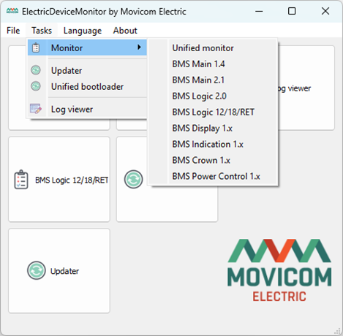
Программа состоит из следующих компонентов:
- Unified monitor – универсальный модуль для связи с устройствами BMS Main 3/3X, BMS Main X, BMS Mini, BMS Mini S через шину CAN, USB или TCP соединение, а также BMS IMD по шине CAN.
- Мониторы устройств:
- BMS Main 1.4 – модуль для связи с устаревшими контроллерами батареи BMS Main 1.2.-1.4 по шине CAN;
- BMS Main 2.1 – модуль для связи с контроллером батареи BMS Main 2.1 по шине CAN;
- BMS Logic 2.0 – модуль для связи с BMS Logic 2.0 по шине RS-485;
- BMS Logic 12/18/RET – модуль для связи с устройствами BMS Logic 12, BMS Logic 18, BMS Logic RET, BMS Logic 12S по шине RS-485;
- BMS Display 1.x – модуль для связи с устройствами BMS Display по шине CAN;
- BMS Indication 1.x – модуль для связи с устройствами BMS Indication по шине CAN;
- BMS Crown 1.x – модуль для связи с устройствами BMS Crown по шине CAN;
- BMS Power Control 1.x – модуль для связи с устройствами BMS Power Control по шине CAN;
- Обновление устройств:
- Updater – универсальный модуль обновления устройств по шине CAN, RS-485, USB и TCP соединению
- Unified bootloader – модуль обновления устройств BMS Main 3/3X по USB.
- Log viewer – модуль просмотра лог-файлов устройства.
Unified monitor
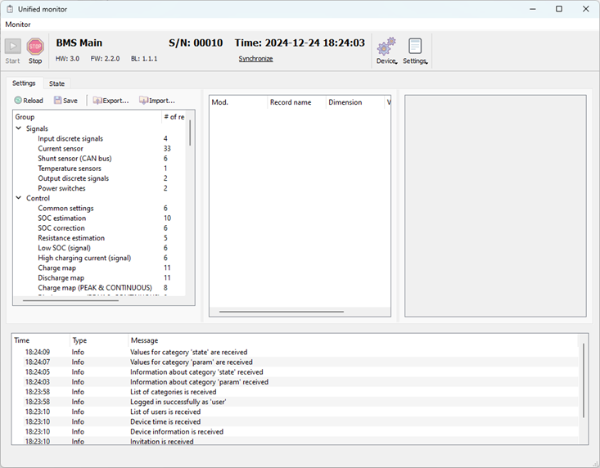
Окно монитора разделено на три области. В верхней области отображаются элементы управления, предназначенные для запуска и останова информационного обмена с устройством, информация об устройстве (название, версия аппаратного и программного обеспечения, время на часах устройства), а также элементы управления для выполнения действий с устройством (изменение пароля, перезапуск, сброс настроек и др.).
В нижней области приводится история действий с устройством.
В центральной области отображаются параметры и переменные состояния устройства. Имеются две вкладки Settings и State, содержащие в себе настройки BMS и информацию о состоянии батареи соответственно. Вкладки в данной области разделены на три колонки. В первой колонке в древовидной форме отображаются группы параметров, во второй отображаются записи для выбранной группы, в третьей отображается детальное описание записи.
Unified monitor поддерживает следующие способы подключения к устройствам:
- TCP соединение через Ethernet или Wi-Fi;
- COM порт (USB соединение или RS-485 адаптер);
- CAN шина (поддерживаются адаптеры Systec, PEAK, Marathon и BMS USB-CAN).